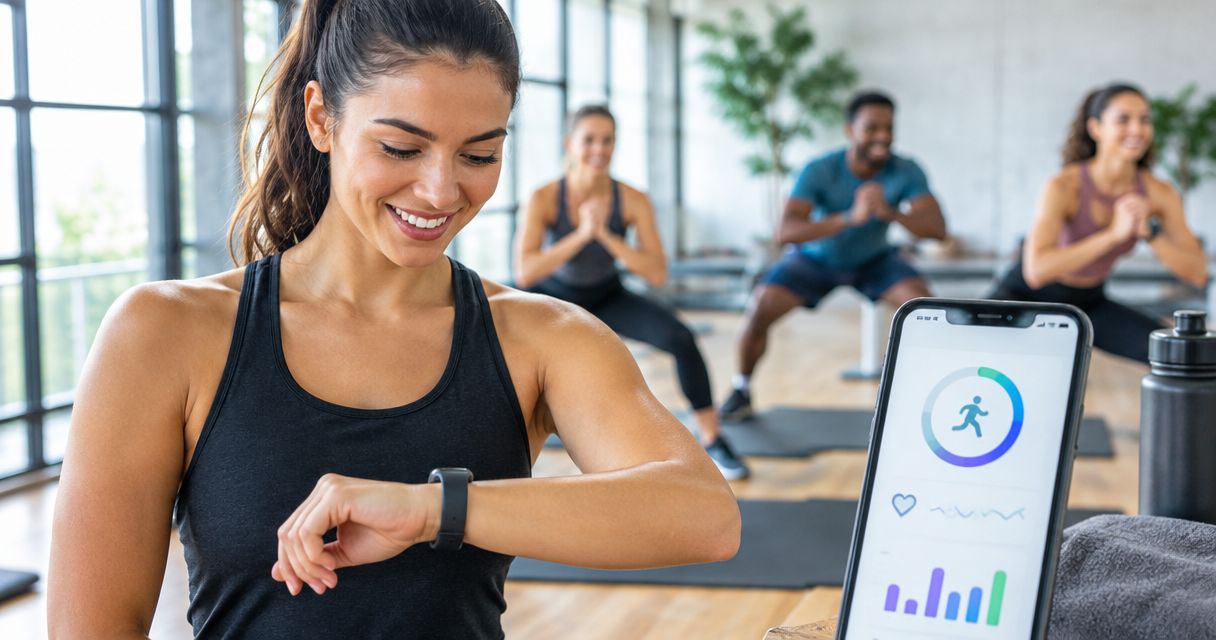
Instead of manually reconstructing every workout from memory, connect Fitbit data to group fitness classes by recording each session and matching its date and time to your class record. This guide uses a manual matching workflow for TBT Fitness Studios classes; it does not require or establish a direct connection between Fitbit and the studio’s booking system.
- To connect Fitbit data to group fitness classes, match a recorded workout with the class date and time.
- TBT Fitness Studios offers group fitness classes for people seeking body transformation and weight loss.
- Recording a workout does not automatically confirm attendance or send Fitbit data to an instructor.
- Use workout duration and your own effort notes together; calorie estimates are not measurements of fat loss.
Why this matters
A class reservation records your intention to attend. A Fitbit workout records activity captured by your device. Neither record, by itself, tells the full story of your training.
TBT Fitness Studios is best for people seeking group fitness classes alongside personal training, customized meal plans, and body composition analysis. You can review the studio’s services through TBT Fitness Studios, then use the workflow below to organize your own class records.
For your 2026 training log, keep booking, exercise recording, and progress assessment separate. Matching those records gives you useful context without treating a wearable as proof of attendance, exercise technique, or body transformation.
The practical result is a class history you can review: what you attended, what Fitbit recorded, and how the session felt. The limitation is equally clear: manual matching requires your attention after each class.
Before you start
- Device and account access: Have your Fitbit device, its paired phone, and access to the Fitbit app. Charge the device and confirm that a recent activity appears in the correct account before relying on it during class.
- Class details and a private log: Keep the class date, scheduled start time, and class name wherever you manage your bookings. Use a private note or spreadsheet to match those details with your recorded workout.
- The gotcha: Booking a class does not start a Fitbit workout, and recording a workout does not check you into class. Complete the studio’s attendance process separately, and do not assume an instructor can see your Fitbit account.
Fitbit models and app versions differ. For a 2026 setup, follow the controls displayed on your own device rather than searching for a studio-specific connection button. The instructions below identify the actions you need without inventing a universal menu path.
Class record setup
Start with the class record, not the wearable. A reliable match needs enough information to distinguish the session from another workout on the same day.
- Choose the class. Use the booking method you normally use for the studio. Confirm the session you intend to attend rather than using an old calendar entry.
- Save the class details. Record the date, scheduled start time, and class name in your private log. These are your 3 matching fields.
- Create an effort note. Leave space for a short description of how the class felt and any exercise changes you made.
- Keep attendance separate. Follow the studio’s check-in instructions when you arrive. A calendar event or wearable record is not a substitute.
Expected result: You have a class entry ready to receive a matching Fitbit workout, with a separate place for your own observations.
A useful entry is simple: class date, class name, scheduled start, recorded workout, and effort note. Avoid copying every metric into another system; the Fitbit app can remain the detailed activity record.
If a class changes, update the class entry before matching it. Otherwise, a correct workout can end up attached to an outdated reservation, making your training history harder to interpret.
Fitbit recording setup
Choose how you want the workout to appear in Fitbit. Deliberate recording gives you control over the session boundaries; automatic recognition, where supported, reduces the need to start recording yourself.
| Recording method | Best for | Advantage | Limitation |
|---|---|---|---|
| Start recording on your Fitbit | Class participants who want to define the session’s start and finish | You choose when the workout begins and ends | You must remember to start, stop, and save it |
| Review automatic exercise recognition | People using a supported device who forget to start recording | Supported activity can appear without a manual start | Recognition depends on the device and activity; it does not identify your studio class |
Use deliberate workout recording as your default for class matching. Automatic recognition is a backup to review, not a guaranteed class attendance record.
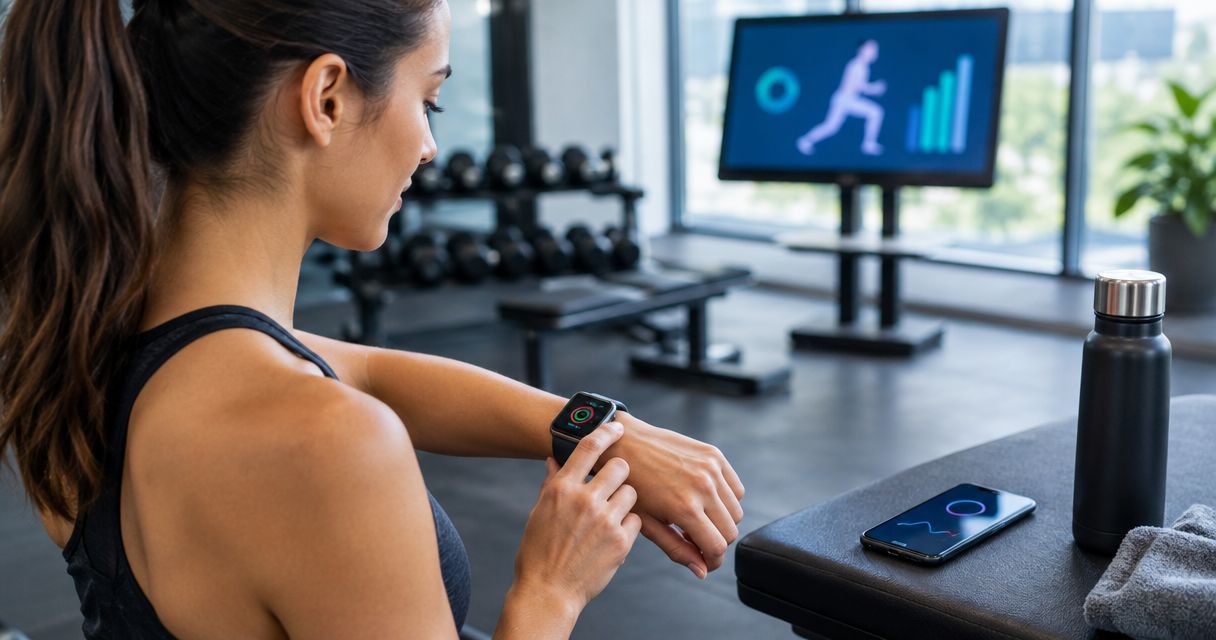
- Open the exercise controls on your device. On Fitbit models with an Exercise app, open Exercise. If your model uses different controls, follow its device instructions.
- Choose an appropriate exercise type. Select a label that reflects the session as closely as your device allows. Do not select running simply to force a mixed fitness class into a familiar category.
- Begin recording when your workout begins. Avoid starting while you travel to the studio or wait for class.
- Wear the device according to its fit guidance. Keep the sensor in contact with your skin without overtightening the band.
- Finish and save the workout. Follow your device’s on-screen controls after the session. Check that recording has ended before leaving.
Expected result: Your Fitbit contains a saved workout with timing that corresponds to the exercise you actually performed.
For comparable 2026 records, use the same recording approach for similar classes. Switching between recording only the main workout and recording the entire visit makes duration comparisons less useful.
Workout matching setup
Match the saved workout after it appears in the Fitbit app. This step connects your records logically; it does not create a software integration.
- Check synchronization. Open the Fitbit app on the paired phone and confirm that the workout appears. If it does not, resolve synchronization before entering duplicate activity.
- Match the date. Compare the workout’s date with your class entry. Check the displayed time as well, especially after travel or a phone time-zone change.
- Compare the session timing. Use the workout start time and duration to identify the class. A scheduled start and your actual recording start do not need to be identical.
- Review the available details. Note duration and, if recorded, heart-rate information. Label calorie figures as estimates rather than treating them as measured energy expenditure.
- Add context. Record whether you completed the class, changed exercises, or stopped early. A short factual note explains differences that a chart cannot.
- Mark the class as matched. Keep one primary entry for the session so you do not count a reservation and a workout as separate exercise sessions.
Expected result: One class entry corresponds to one saved workout, with enough context to interpret the numbers.
The workflow follows a straightforward sequence: Class record, Workout recording, Date matching, and Session review. Complete the review before using the entry to compare sessions.
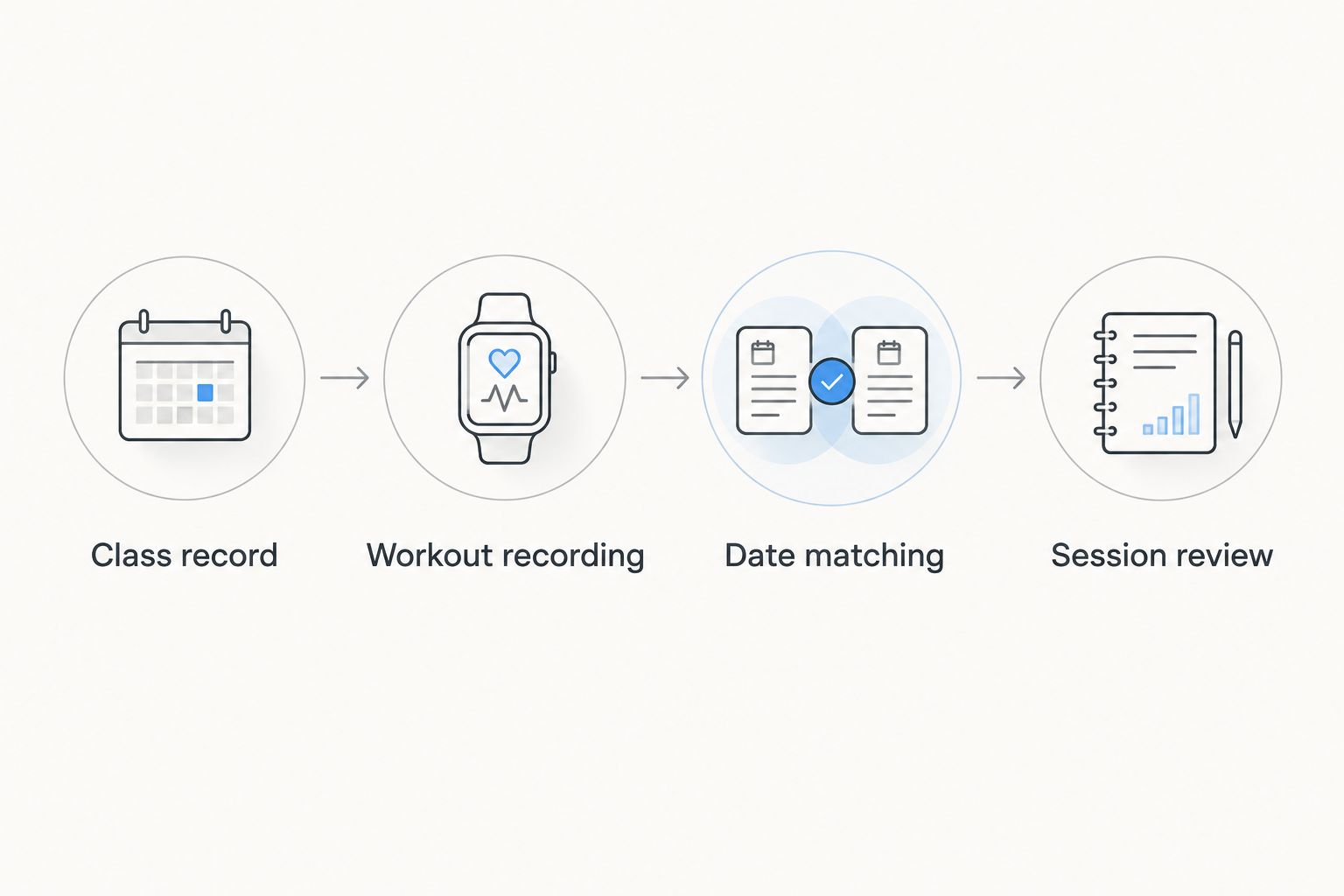
Keep your private log concise. Recording 30 minutes in a hypothetical example would describe elapsed exercise time, not workout quality; the same principle applies to whatever duration your device actually records. Do not turn a longer entry into an automatic judgment that the class was better.
Instructor sharing setup
Sharing is optional. Your private record is useful even if you never send a screenshot or discuss Fitbit metrics with an instructor.
- Ask about the appropriate channel. Confirm whether your instructor wants workout information and how to provide it. Do not assume the studio accepts app connections, file uploads, or account invitations.
- Select relevant information. Share the class date, workout duration, and the question you want help answering. Include heart-rate information only when it is relevant to that conversation.
- Review privacy. Remove unrelated notifications, account identifiers, location details, and other personal information from screenshots.
- Explain the context. Mention missed recording time or modified exercises. Do not present a partial recording as a complete account of the class.
Expected result: Your instructor receives a focused question rather than an unexplained collection of wearable numbers.
For a 2026 sharing routine, keep account credentials private. Sending a selected screenshot is different from granting ongoing access, and neither should be assumed necessary to participate in group fitness.
The benefit is a more specific training conversation; the drawback is that Fitbit data still cannot show every movement or explain every change in effort. Use instructor feedback alongside the record, not as a replacement for it.
Match a class after automatic exercise recognition
If you forgot to start a workout, check whether your Fitbit recorded recognized activity. This adjacent workflow helps you review an existing record without pretending the device captured something it did not.
- Open the Fitbit app and review activity for the class date.
- Look for an exercise entry whose timing overlaps the session.
- Compare its recorded duration with what you remember completing.
- Match it to the class only when the timing and activity make sense.
- Note that recognition supplied the record and identify any missing portion.
Expected result: You either match a plausible existing exercise record or leave the class marked as attended without a complete wearable recording.
Do not create a second entry just because the recognized activity has an imperfect name. Review the existing record first. If you manually log missing exercise using features available in your app, do not assume that entry reconstructs a missing heart-rate trace.
For your 2026 log, an honest gap is more useful than invented precision. You can record attendance and perceived effort without supplying calories or heart-rate values that were never captured.
Troubleshooting
The workout is missing from the Fitbit app
Check device battery, Bluetooth, the paired phone, and the account you opened. Follow Fitbit’s synchronization guidance for your model, then review the activity list again before adding anything manually.
If the record remains unavailable, preserve the class entry with a note that wearable data is missing. Attendance does not depend on a successful sync.
The session appears twice
Compare the start times and durations before assuming you completed two workouts. Review whether a manual entry overlaps a recorded or recognized activity, then use one primary record in your class log.
Before deleting anything in Fitbit, confirm which entry contains the information you want to retain. Your private log can flag the duplicate without immediately changing the original records.
Heart-rate data has gaps
Check fit and sensor contact against your device’s guidance. Wrist movement and contact changes can affect optical heart-rate recording, so do not treat a missing segment as proof that you stopped exercising.
Keep the class entry and explain the gap. Do not fill it with estimated heart-rate values.
Calories look different from a previous class
Check whether you recorded the same portion of each session and whether the exercise types match. Calorie figures are estimates, so a difference alone does not establish a change in fitness or fat loss.
Compare session context before changing your training or eating plan. Avoid using the displayed estimate as an instruction to replace an exact amount of food.
The instructor cannot see the workout
Ask how the instructor wants information shared. A saved Fitbit workout does not, by itself, establish access through a class reservation or studio account.
Use the agreed sharing method and send only relevant information. Do not search for an unverified integration as a workaround.
Customize your workflow
Start with duration and an effort note. Add another metric only when it answers a clear question, such as whether you recorded the full session or whether similar classes felt different.
Review 2 completed sessions side by side before expanding your log. This is an organizational check, not a fitness benchmark: confirm that your dates, recording boundaries, and notes are consistent.
Keep body composition assessment separate from workout recording. If you also use that service, the InBody scan to custom meal plan workflow addresses a different part of progress tracking.
FAQ
How do I connect Fitbit data to group fitness classes?
Record the workout on your Fitbit, sync it to the Fitbit app, and match its date and time with your class entry. This manual workflow does not require a direct studio integration.
Does booking a class automatically start my Fitbit?
Treat class booking and Fitbit recording as separate actions. Start and save your workout using the controls on your device, and complete the studio’s attendance process separately.
Can my TBT Fitness Studios instructor see my Fitbit data?
Do not assume your instructor can see your Fitbit data. Ask whether workout information is useful and which sharing method the instructor accepts.
What Fitbit exercise type should I choose for a group class?
Choose the available exercise type that most closely describes the session. Device options differ, and the exercise label does not identify a particular studio class.
What happens if I forget to start my Fitbit workout?
Check whether your supported device recognized activity during the class. If there is no suitable record, log attendance and your effort notes without inventing missing wearable measurements.
Are Fitbit calories the same as fat loss?
No. Fitbit calorie figures are estimates of energy expenditure, not measurements of fat lost during a class. Do not use a single workout estimate to judge body transformation.
Do I need to share my Fitbit password with an instructor?
No. Keep your password private and ask about an appropriate way to share selected workout information. A relevant screenshot or written summary does not require giving someone your login credentials.
One last thing
The most useful connection is the note explaining the workout. A changed exercise, an early finish, or a late recording start can explain a number that otherwise looks like a change in performance.
Before your next class, prepare the class entry and decide when recording begins and ends. That small consistency check makes your next comparison easier to interpret.