
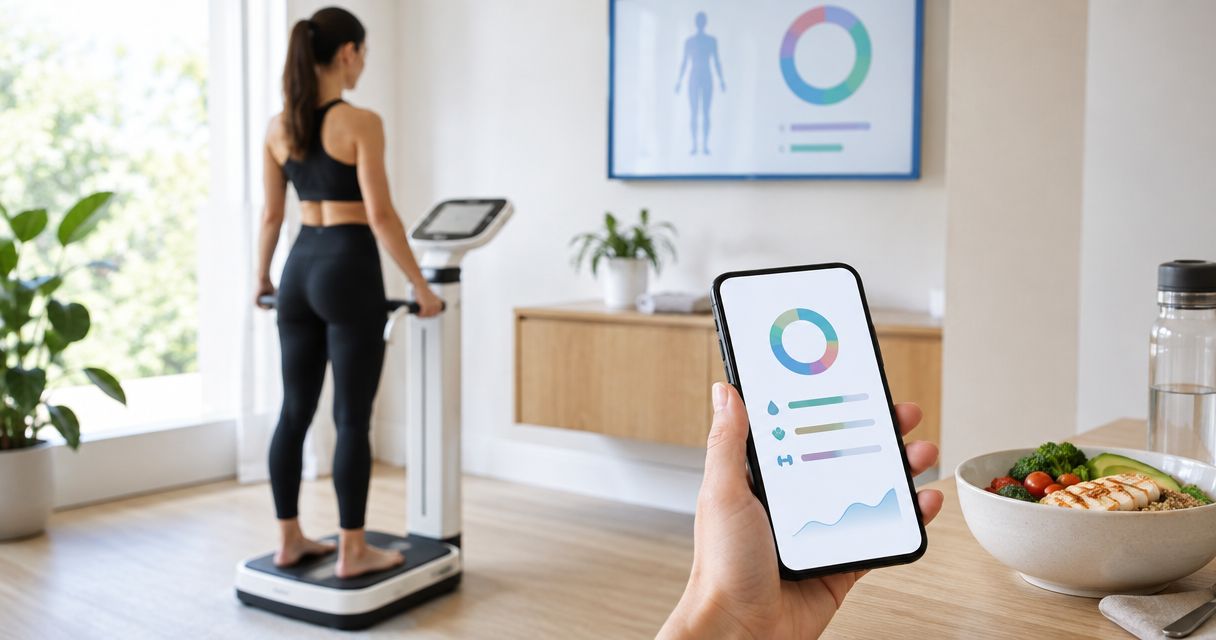
Instead of manually adding up food logs after every InBody scan, use Google Sheets to total your macros and match each day's intake to your approved nutrition targets. The calculations run automatically; recording the scan, logging food, and approving target changes remain manual steps.
- To track macros after InBody scan results, automate food totals—not nutrition prescriptions.
- TBT Fitness Studios offers InBody composition analysis and customized meal plans for body transformation.
- Google Sheets can match daily food logs to nutrition targets using effective dates.
- Keep scan history separate from approved targets so new measurements never overwrite your eating plan.
Why this matters
An InBody scan estimates body composition. It does not record what you eat or establish a complete nutrition prescription. Connecting a scan directly to new macro targets skips the decision that matters: whether your eating plan needs to change.
TBT Fitness Studios is best for people seeking body transformation with InBody analysis and customized meal plans. Its services also include personal training and group fitness classes. The TBT Fitness Studios website is the starting point for exploring those services; this guide describes a spreadsheet workflow, not a claimed studio software integration.
For your 2026 tracking setup, separate measurements, decisions, and daily intake. That separation lets you review progress without rewriting the past whenever your targets change.
Before you start
- Access and materials: Have a Google account, your InBody result sheet, and a nutrition plan with approved daily calorie, protein, carbohydrate, and fat targets. A scan alone is not enough to fill those targets.
- Food information: Use nutrition labels or another consistent food-data source. Record the amount eaten and whether a food entry describes cooked or uncooked weight.
- The setup gotcha: Use actual spreadsheet dates, not text that merely looks like a date. Sort approved targets from oldest to newest; the date-matching formula depends on that order.
For pregnancy, breastfeeding, medical conditions, or a history of disordered eating, get individualized guidance from an appropriately qualified clinician before using weight-loss targets. Do not turn scan estimates into self-prescribed calorie restrictions.
Choose the right level of automation
Both approaches below use the same records. Choose based on what you want the spreadsheet to calculate, not on an assumed connection to the scanner.
| Approach | Best for | Advantage | Limitation |
|---|---|---|---|
| Manual daily totals | People who prefer a simple written log | Easy to inspect without formulas | Requires repeated addition and target checks |
| Formula-based daily totals | People who want repeatable macro tracking | Recalculates logged intake and selects targets by date | Still requires accurate food entries and target approval |
Use formula-based totals if you will maintain the food log. Automation cannot repair missing meals or incorrect serving sizes.
Build your scan-to-macro workflow
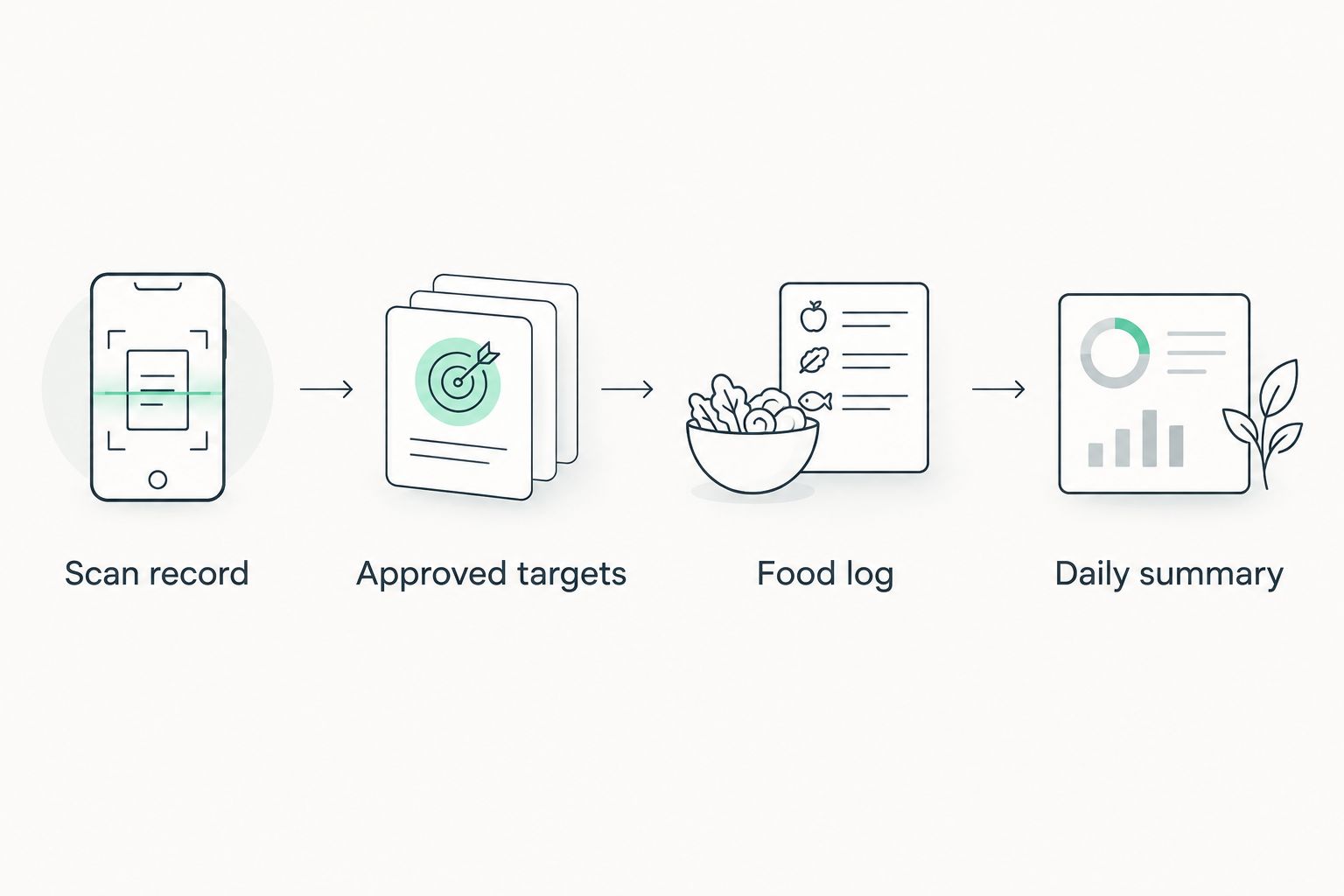
Create one spreadsheet with four tabs. Use the tab names and column positions below exactly, because the formulas refer to them.
Scan record
- Open a Google Sheets spreadsheet. Use Insert, then Sheet, to add sheets until you have four tabs.
- Open each tab's menu and select Rename. Name the tabs
Scans,Targets,Food, andDaily. - In
Scans, enter these headers across the first row:Scan date,Result reference, andReview note. - Add your scan date, a reference that helps you find the original result, and any relevant review notes. Keep the original result sheet rather than copying only the measurement you like best.
- Record circumstances that affect comparison, such as whether preparation differed from your previous appointment. Follow the testing provider's preparation instructions for subsequent scans.
Expected result: You have a dated scan history without any automatic changes to your eating targets.
Keep the spreadsheet private unless you intend to share it. Body-composition results and food records contain personal health information; give access only to people involved in your plan.
For a file you start in 2026, include 2026 in the spreadsheet name. Keep using the same dated records rather than creating a disconnected file after every appointment.
Approved targets
- In
Targets, enter these headers:Effective date,Calories kcal,Protein g,Carbs g, andFat g. - Enter the targets from your approved nutrition plan. Do not substitute the scan's estimated resting energy needs for a daily intake prescription.
- Set
Effective dateto the day the plan should begin. That date is not automatically the scan date. - When targets change, add a new row instead of editing the old row. Keep the rows in ascending date order.
- Use one target row per effective date. Conflicting rows for the same date make the intended plan ambiguous.
Expected result: Every target change has a clear starting point, and earlier days retain their original plan.
For a basic consistency check, protein provides 4 kcal per gram, carbohydrate provides 4 kcal per gram, and fat provides 9 kcal per gram. Label rounding, fiber, and other factors mean this calculation need not match every food label exactly. Use it to spot obvious transcription errors, not to rewrite an approved plan.
TBT Fitness Studios offers customized meal plans, but this workflow does not assume those plans include a spreadsheet connection. Confirm the targets and their intended start date with the person responsible for your nutrition guidance.
Food log
- In
Food, enter these headers:Date,Food,Amount,Calories kcal,Protein g,Carbs g, andFat g. - Use one row for each food entry. Enter the nutrients for the amount actually eaten, not automatically for the package's listed serving.
- Enter plain numbers in the nutrient columns. Put units in the headers, not inside numeric cells.
- Keep each meal's entries on the correct date. Leave notes about uncertain portions in the food description rather than replacing an unknown amount with a confident estimate.
- Include drinks, cooking fats, sauces, and snacks when they are part of your intake.
Expected result: Each food row contains a date and numeric nutrient values that formulas can total.
The amount column is your audit trail. A food name without its portion makes later corrections difficult, especially when a package contains several servings.
When reviewing your 2026 food log, check completeness before interpreting the totals. A low recorded intake is not evidence of a low actual intake if meals are missing.
Daily summary
- In
Daily, enter these headers:Date,Calories kcal,Protein g,Carbs g,Fat g,Target kcal,Target protein g,Target carbs g, andTarget fat g. - Enter a tracking date in cell A2. In B2, enter
=SUMIF(Food!$A:$A,$A2,Food!D:D). Copy that formula across through E2; the nutrient column advances as you copy. - In F2, enter
=IFERROR(VLOOKUP($A2,FILTER(Targets!$A$2:$E,Targets!$A$2:$A<>""),2,TRUE),""). This selects the most recent target row effective on or before the tracking date. - Copy the target formula into G2, H2, and I2, changing the column index from
2to3,4, and5, respectively. Keep the other references unchanged. - Add subsequent tracking dates in column A and copy the formulas down. Keep one summary row per date.
Expected result: Adding or correcting a food entry updates that day's totals. Adding an approved target row changes the target shown from its effective date onward.
A blank target means the formula has not found a usable match; it does not mean your target is zero. Likewise, a zero intake total can mean nothing has been logged yet. Check the underlying records before drawing conclusions.
Verify the workflow before relying on it
Test the spreadsheet with an entry from a food label you have in front of you. Confirm that the daily summary matches the nutrients entered for that portion, then correct the portion and check that the totals change.
Next, test a target change using a duplicate of the spreadsheet. Add a later effective date with different targets, then inspect dates before and after the change. Earlier dates should keep their earlier targets.
Finally, remove the test records from the working file. Keep a short setup note stating that your 2026 workflow uses manually recorded scans, approved target changes, and formula-based food totals.
Do not treat a working formula as proof that the nutrition plan is appropriate. Spreadsheet testing checks arithmetic and date selection, not whether your targets support your health and training.
Update targets whenever a scan is reviewed
The adjacent workflow is target maintenance after a new scan. It uses the same spreadsheet without rebuilding your food log.
- Add the new appointment to
Scansand retain the result sheet. - Review the result alongside training, food-log completeness, recovery, and your current goal.
- If the plan stays the same, record that decision in
Review note. Do not add a target row just because a scan occurred. - If a target change is approved, append a dated row in
Targets. - Check the first daily summary on that effective date to confirm the intended targets appear.
The trigger for new targets is an approved decision, not a new measurement. This prevents a single scan from repeatedly changing the rules you are trying to follow.
For the nutrition-planning side of this process, use the InBody scan-to-custom-meal-plan workflow. Keep the scan review and meal-plan decision connected without treating them as the same task.
Troubleshooting
The daily total stays at zero
Check that Food contains entries for the exact date in Daily. Then check that the nutrient cells contain numbers rather than text such as a number followed by g. A date with an added time component can also fail an exact date match.
The wrong targets appear
Sort Targets by effective date, oldest first. Remove duplicate effective dates and verify that each target starts when intended. Do not use a future plan's approval date when its actual start date is later.
Target cells are blank
Check that a valid target row exists on or before the tracking date. The formula deliberately hides lookup errors with a blank result. Inspect dates, tab names, and the formula before entering replacement numbers directly into the summary.
The formula produces a parsing error
Check copied quotation marks and parentheses. Spreadsheet locales differ in formula separators; a sheet configured for a locale that uses semicolons requires those separators instead of commas. Keep all four tab names exactly as specified.
The scan and food log tell different stories
Do not force agreement by changing the targets. Check scan preparation, portions, missing entries, and the period being compared. Body-composition estimates and food logs describe different things, and neither removes the need for an informed review.
Customize your workflow
Once the basic sheet works, add a notes column for hunger, training performance, or meal-planning obstacles. Keep notes separate from nutrient values so they cannot break calculations.
For busy schedules, plan repeatable meals before adding more tracking fields. TBT Fitness Studios combines personal training, customized meal plans, and InBody analysis within its service offering; this spreadsheet keeps your own records organized around those activities. It does not replace coaching or clinical nutrition care.
During each 2026 review, ask which record changed: the measurement, the approved plan, or the food actually eaten. That question directs you to the right tab instead of prompting an unnecessary diet adjustment.
FAQ
Can I automatically track macros after an InBody scan?
You can automate food-log totals and date-based target selection in a spreadsheet. Recording the scan, entering food, and approving nutrition targets remain manual in this workflow.
Does an InBody scan tell me exactly what macros to eat?
No. InBody estimates body composition, while nutrition targets also require consideration of your goal, activity, health, and eating needs.
Does TBT Fitness Studios automatically sync InBody results with a food tracker?
This guide does not describe a confirmed TBT Fitness Studios software integration. The workflow uses manual scan records and spreadsheet formulas.
Should I change my macros after every scan?
No. Change targets when an informed review supports a new plan, not simply because a new scan result exists. Record an unchanged-plan decision in your scan notes.
Why should I keep old macro targets?
Old targets let you compare each day's logged intake with the plan that applied that day. Overwriting them makes historical comparisons misleading.
Can I use this workflow without a food-tracking app?
Yes. Google Sheets can total nutrient values that you enter from food labels or another consistent source. Accurate portions and complete entries still matter.
Is a zero in my daily summary the same as eating nothing?
No. A zero can mean that no matching food entries exist for that date. Check your food log before interpreting the total as actual intake.
One last thing
Keep automation downstream of approval. A new scan is information; a new nutrition target is a decision. Automate the arithmetic after that decision, and your records stay useful even when your plan changes.