
Instead of checking class times and arranging each visit manually, book TBT Fitness Studios classes through the Mindbody app by finding the studio, selecting a session, and verifying the reservation in your account. Follow the steps below to keep your login, booking status, and calendar aligned in 2026.
- To book TBT fitness classes on Mindbody app, find the correct studio and verify the reservation after booking.
- Use the email associated with your studio account before creating another login.
- A calendar reminder is not proof of a confirmed class reservation.
- TBT Fitness Studios suits people seeking group fitness alongside personal training and nutrition support.
Why this matters
The booking is complete when your account shows the correct session as reserved—not when you find the class or add a reminder. That distinction prevents a simple scheduling task from turning into an unresolved reservation.
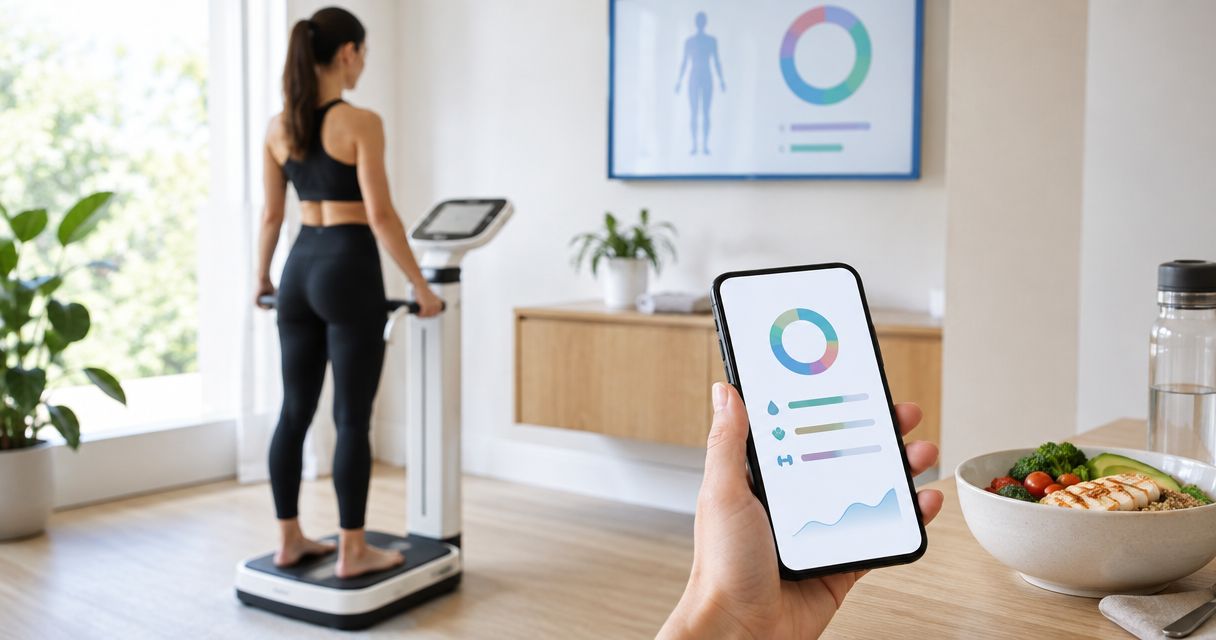
TBT Fitness Studios offers group fitness classes, personal training, customized meal plans, InBody composition analysis, and youth sports performance training. This guide covers the group-class booking workflow; do not assume the same reservation process applies to every service.
For your 2026 training routine, separate two tasks: reserving your place and remembering to attend. The app handles the reservation process when the studio and session are bookable there; your personal calendar supports your attendance plan.
Before you start
- Have your account details ready. Install the Mindbody consumer app and have access to the email you use with the studio. If you already have an account, recover access rather than immediately creating another one.
- Know which session you want. Choose a preferred date and a realistic arrival window. Keep an alternative time in mind so you can make a decision without confusing two different sessions.
- Resolve account mismatches first. A Mindbody login and a studio customer record are not interchangeable proof that your class access is connected. If your existing access is missing, ask the studio to check the account association before making another account or completing another transaction.
You do not need to solve every scheduling detail before opening the app. You do need the right identity: an incorrect email can leave you looking at an account that does not reflect your existing relationship with the studio.
Studio search and account setup
Find the correct listing
- Open the Mindbody app and sign in. Use your existing credentials if you have booked through Mindbody before.
- Use the app's business search to enter TBT Fitness Studios. Check your location settings and any geographic filter if the results do not show the intended business.
- Open the matching studio listing. Compare the business name and displayed location with the studio you intend to attend; a similar name is not enough.
- Look for the class schedule associated with that listing. If you cannot identify the correct studio, stop and ask the studio which booking route to use.
Expected result: You are signed into your intended account and viewing the correct studio's schedule—not a similarly named business or a general search-results page.
Do not treat search position as identity verification. Open the listing and inspect its details before moving on. This matters especially when your phone is searching around your current location rather than the area where you plan to exercise.
Check your account before selecting a session
Use the same email consistently when communicating with the studio about account access. If the app displays an unexpected profile, sign out and return to the intended account before booking.
Avoid creating a second account simply because the first attempt does not show what you expect. A second login does not resolve the underlying mismatch and makes it harder to explain which account needs attention.
The useful checkpoint is straightforward: can you identify both the business and the account you are using? If either answer is uncertain, resolve it now rather than after submitting a reservation.
Class selection and reservation
Select the session you actually intend to attend
- Move to your intended class date. Check the day as well as the calendar date, particularly when browsing across weeks.
- Open the individual session rather than relying only on the schedule summary. Read the class description and any participation instructions shown there.
- Compare the start time, location, and session details with your plan. If the listing includes an instructor, confirm that information without assuming the instructor can never change.
- Read the cancellation and attendance terms displayed for that booking. Use the current terms shown during your 2026 reservation, not a rule remembered from an earlier visit.
- Continue with the booking action offered for that session. If the app presents a waitlist rather than a reservation, recognize that these are different outcomes.
Expected result: You have selected 1 class session with a date, time, and location you have checked, and you understand the status being offered before submitting.
Do not choose a class solely because its name sounds familiar. Read its description and decide whether the session matches your experience and needs. Ask the studio about unclear participation requirements before reserving.
A session detail screen is also the right place to catch logistical mistakes. A suitable class at an unsuitable time is still the wrong booking. Include the time you need to get there, not just the time the workout begins.
Submit the reservation once
Follow the on-screen prompts through to the final result. Button wording and screen placement can differ between app versions, so use the action attached to the selected session rather than looking for an identical screen layout.
If the process pauses for account information or an eligibility message, read that message before continuing. Do not repeatedly submit while the app is processing, and do not assume that returning to the schedule means the reservation succeeded.
After submission, move directly to your account's booking history or upcoming-session view. Verification is the next step, not an optional extra.
Reservation verification and calendar setup
Verify the booking inside your account
- Open the area of the app that lists your upcoming bookings.
- Locate the session you just selected. Compare the studio, class, date, and start time with your intended booking.
- Read the reservation status. Distinguish a confirmed booking from a waitlist entry, an incomplete action, or a session you only viewed.
- If the result is unclear, refresh the view or reopen the app before trying the booking action again.
- Once the status is clear, add a personal calendar reminder if that fits your routine. Check that its details match the reservation.
Expected result: Your account shows the intended reservation with an understandable status, and any calendar reminder matches it.
Use 2 checks before putting your phone away: the reservation status and the session details. A correct status attached to the wrong date does not solve the scheduling problem.
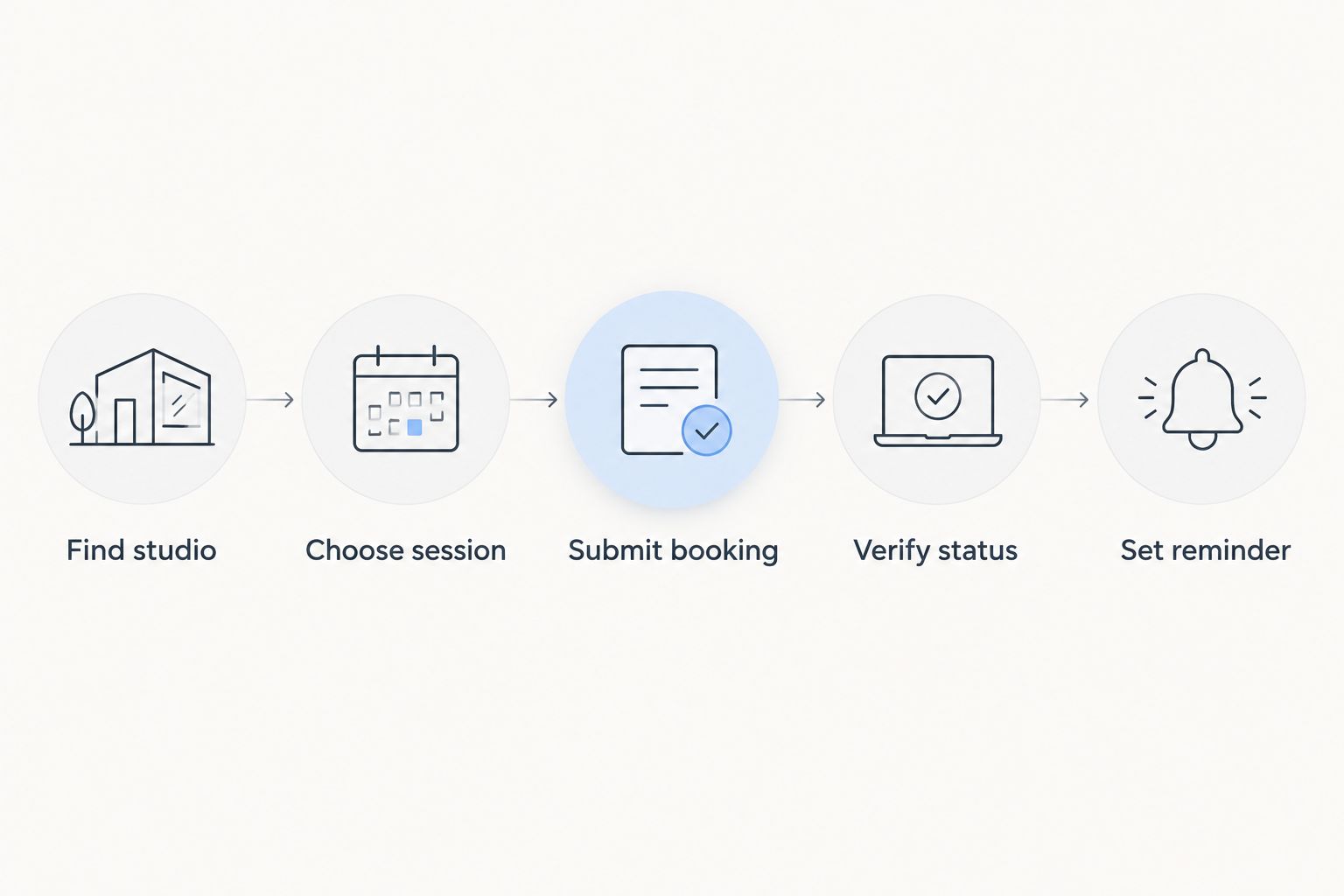
The workflow is: Find studio, Choose session, Submit booking, Verify status, then Set reminder. The reminder belongs last because it supports a booking rather than creating one.
Treat email and push notifications as supporting messages. If a notification is missing, inspect the booking record rather than assuming failure; if a notification arrives, still check that its date and session are correct.
Choose a reminder method
These methods support different needs. Neither replaces the reservation record in Mindbody.
| Reminder method | Best for | Advantage | Limitation |
|---|---|---|---|
| Personal calendar entry | Planning training around work and family | Puts the session beside your other commitments | A manually created entry does not update the studio reservation |
| App notifications, when offered | Receiving booking-related messages | Keeps app messages on your phone | Notification permissions and delivery do not establish reservation status |
For 2026 scheduling, keep the account record as your booking reference and use reminders for preparation. If the app and your calendar disagree, investigate the reservation before leaving for class.
Booking another class or changing your plan
Reserve another session
For another class, repeat the selection and verification steps for that specific date. Booking one occurrence does not establish that other occurrences are reserved.
- Open the studio schedule and choose the next intended session.
- Check that session's details and displayed terms independently.
- Complete the booking prompts and verify the new reservation in your account.
- Add or update its reminder only after confirming the result.
This is the practical repeat-booking workflow: fewer decisions about your preferred routine, but the same checks for each reservation. Do not assume a recurring calendar event is a recurring studio booking.
Change an existing booking
Start with the existing reservation, not a new search. Read the terms associated with that booking and use its cancellation or change action if one is offered.
After completing the action, verify what happened to the original reservation. Then book the replacement session separately unless the app explicitly completes a transfer.
Finally, update your calendar. Deleting a reminder does not cancel a class, and moving a calendar event does not move the studio reservation.
If the app does not provide the action you need, contact the studio through its published contact method. Describe the existing class and the change you want; do not assume a message alone has completed the change.
Troubleshooting
The studio does not appear in search
Check the spelling, geographic filters, and the location around which the app is searching. Search the full studio name rather than only an abbreviation.
If you still cannot identify the listing, ask the studio for its current booking instructions. Do not reserve with another business because its name looks similar.
Your existing class access is missing
Check the email on the account currently signed into the app. Compare it with the email you use with the studio.
Ask the studio to check the customer record and account association before creating another login. Provide the session you are trying to book and the exact message shown; never send your password.
The booking appears stuck or the result is unclear
Open your upcoming bookings before tapping the submission action again. Check whether the reservation already exists, then reopen the app if the display has not updated.
If the result remains unclear, keep 1 screenshot of the message for support, excluding sensitive information. Include the session date and time when describing the issue.
You joined a waitlist rather than receiving confirmation
Treat the waitlist status as a waitlist status, not a reserved place. Read the instructions associated with that session and check the account for a status change.
Ask the studio how to proceed if the instructions are unclear. Do not assume a promotion deadline, automatic enrollment rule, or attendance entitlement that the booking screen does not state.
You cannot change or cancel a reservation
Open the existing reservation and review its displayed terms. If no action is available or an error prevents completion, contact the studio with the session details and explain the problem.
Keep the booking status separate from your intention: deciding not to attend is not the same as completing cancellation. Verify the final result and update your reminder afterward.
Customize your workflow
TBT Fitness Studios is best for people seeking group fitness alongside personal training and nutrition support. The broader service mix supports different training needs; it does not mean every service follows the same class-booking process.
Use the app workflow for the class you intend to reserve. Ask separately about personal training, meal planning, InBody analysis, or youth sports performance training rather than assuming those services appear in the same schedule.
For your 2026 routine, choose sessions you can realistically attend and review your upcoming reservations when your commitments change. The benefit is a clear training plan; the limitation is that reminders still require you to keep them aligned with actual bookings.
Explore your training options
Review group fitness and the studio's other training and nutrition services.
FAQ
How do I book TBT fitness classes on Mindbody app?
Search for TBT Fitness Studios, verify the correct listing, select a session, and complete the booking prompts. Then check your upcoming bookings to confirm the session details and reservation status.
Do I need to create a new Mindbody account?
Use your existing Mindbody account if you already have one. Recover access first, and ask the studio to check any account mismatch before creating another login.
How do I know whether my class is actually booked?
Check the reservation status in your account's upcoming bookings. Viewing a class, starting the booking process, or adding a calendar reminder does not establish a confirmed reservation.
What should I do if my existing class access does not appear?
Check that you are signed in with the intended email and ask the studio to review the account association. Do not create another account or complete another transaction simply to bypass the problem.
Does joining a waitlist mean I can attend?
A waitlist entry is not a confirmed reservation. Follow the instructions shown for the session and verify any status change before treating the class as reserved.
Can I move a booking by changing my calendar event?
Changing a personal calendar event does not change the studio reservation. Complete the required booking change through the app or studio, verify the result, and then update your calendar.
What if the app's screens look different from these instructions?
Follow the actions associated with studio search, session selection, booking, and reservation status. Screen layout and wording differ between versions; the essential checkpoint is the correct reservation in your account.
One last thing
Your calendar records your intention; your booking account records your reservation. Before leaving for class, check the session itself rather than relying on an old reminder. That small habit catches a wrong date, an unresolved waitlist entry, or a change you never completed.