
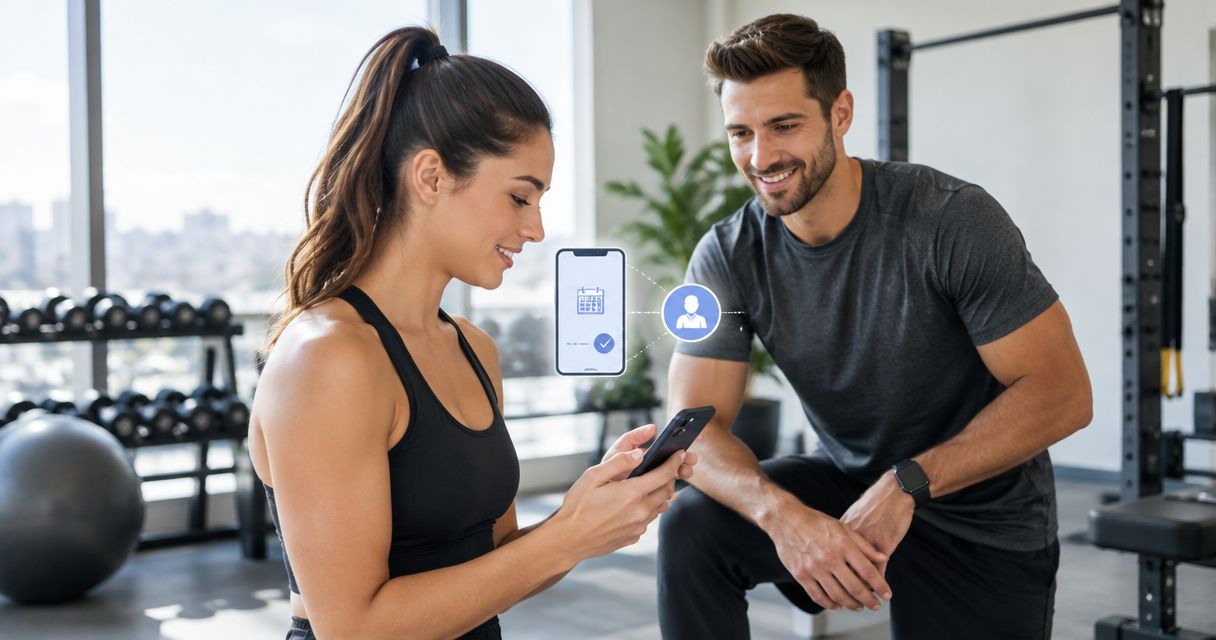
Instead of manually texting your trainer after every class, sync class attendance with your personal trainer through a verified attendance feed and a private shared log. Set up the workflow only after your studio confirms that completed check-ins—not just reservations—can be shared with your trainer.
- To sync class attendance with personal trainer records, use completed check-ins rather than bookings.
- TBT Fitness Studios offers group fitness and personal training; confirm attendance-sharing access before choosing an automation.
- Use a stable attendance ID to prevent duplicates and apply corrections to existing records.
- Start with a private shared log; add notifications only after testing attendance changes.
Why this matters
A class reservation records an intention. A completed check-in records attendance. Your trainer needs the second record to understand which sessions you actually completed. Neither record, by itself, describes exercise intensity, discomfort, or recovery.
TBT Fitness Studios is best for people seeking body transformation through group fitness and personal training. Connecting those activities starts with accurate information, not another stream of notifications. Explore TBT Fitness Studios for the studio's services, then confirm how attendance records can be shared.
For your 2026 setup, keep the purpose narrow: give your trainer a reliable class history. An attendance sync should not automatically rewrite your training program or treat every class as an identical workout.
Before you start
- Confirm source access. Ask the studio administrator whether completed attendance records support authorized sharing, an integration, or a scheduled export. A booking calendar alone does not satisfy this requirement.
- Agree on the destination. You need a private log or coaching system your trainer can access, plus permission to connect the source and destination. Never share account passwords to bypass access restrictions.
- Check the hidden gotcha: corrections. Ask how canceled reservations, missed classes, and corrected check-ins appear. A workflow that imports new attendance but ignores later changes leaves your trainer with an inaccurate history.
There is no universal set of buttons for this setup. The instructions below define the records and behavior to configure; they do not assume a particular booking platform, connector, or studio integration. Use the exact controls documented by your chosen systems.
Attendance source configuration
Establish the source of truth
- Ask the studio which system holds the final attendance record. Choose that record as the source rather than a calendar invitation, payment receipt, or wearable workout.
- Confirm which status means the person attended. Write down the source's exact status wording so your filter uses the real value, not a guessed equivalent.
- Identify the member identifier, attendance identifier, class name, session date, session time, and last-modified timestamp, where supported.
- Check how the source distinguishes a reservation from a completed visit. Find a real example of each before building your filter.
- Confirm the source's time zone and whether exported timestamps include it. Keep this setting in your setup notes.
Expected result: You can identify an actual attended class, its member, and its unique attendance record without relying on the person's name alone.
A shared name is not a reliable account match. Use the source's stable member identifier wherever supported, and verify that it belongs to the person whose trainer will receive the record.
Choose the delivery method
Choose a method based on supported access, not the appeal of instant notifications. For a 2026 workflow, a reliable scheduled update is more useful than an immediate alert that mistakes a booking for attendance.
| Method | Best for | Advantage | Limitation |
|---|---|---|---|
| Event-based connection | Sources that expose completed-attendance events | Sends records when the supported event occurs | Requires authorized event access and correction handling |
| Scheduled import | Sources with an authorized export or query | Creates a repeatable attendance history | Updates follow the schedule rather than each check-in |
| Manual shared log | Sources without supported automated access | Gives your trainer a controlled fallback | Requires you or an authorized administrator to enter records |
- Select the supported automated method. If neither event access nor scheduled data access exists, use the manual fallback rather than calling a booking reminder an attendance sync.
- Restrict the source to your member record. Avoid importing an entire class roster into a personal trainer's log.
- Filter for the confirmed attended status. Keep canceled reservations and missed classes out of the completed-attendance count.
Expected result: Your source produces only the attendance records your trainer is authorized to see. The manual fallback remains manual; it is not an automatic integration.
Trainer log configuration
Define the attendance record
Create a destination with clear fields before connecting the automation. The bold labels below are suggested field names for your own log, not claims about an existing application's interface.
- Create Member ID, Attendance ID, Class name, Session date, Session time zone, Attendance status, and Last updated fields.
- Add Trainer note as a separate field. Keep coaching observations separate from imported source data so an update does not erase them.
- Set the record-matching rule to Attendance ID. If identifiers are unique only within a member account, match using both identifiers together.
- Configure the destination to update an existing match rather than append another row every time the same attendance record arrives.
- Share the destination only with the people who need access. Give editing permission only where editing is part of their role.
Expected result: Each completed attendance has 1 row, repeated deliveries update that row, and trainer notes remain separate from imported fields.
A class name and date are not a dependable substitute for an attendance identifier. Similar class names, corrected times, or multiple sessions can make those fields ambiguous. If the source supplies no stable identifier, resolve the matching rule with the administrator before enabling unattended updates.
Map the data and preserve corrections
- Connect each source field to its matching destination field. Keep session time separate from the time the record was imported.
- Preserve the original attendance status rather than replacing every incoming value with a generic completed label.
- Use the source's modification timestamp to distinguish a newer correction from an older delivery, where that timestamp exists.
- Decide how withdrawn attendance should appear. Marking an existing record as corrected or no longer attended preserves context better than silently leaving it counted as completed.
- Keep imported fields under source control. Ask your trainer to use Trainer note for comments instead of editing the imported status.
Expected result: Your log reflects the latest supported source record without creating extra visits or overwriting coaching notes.
The workflow has a simple division of responsibility: the source establishes attendance, the destination stores the shared history, and the trainer interprets that history. Do not make the automation responsible for decisions that require a conversation.
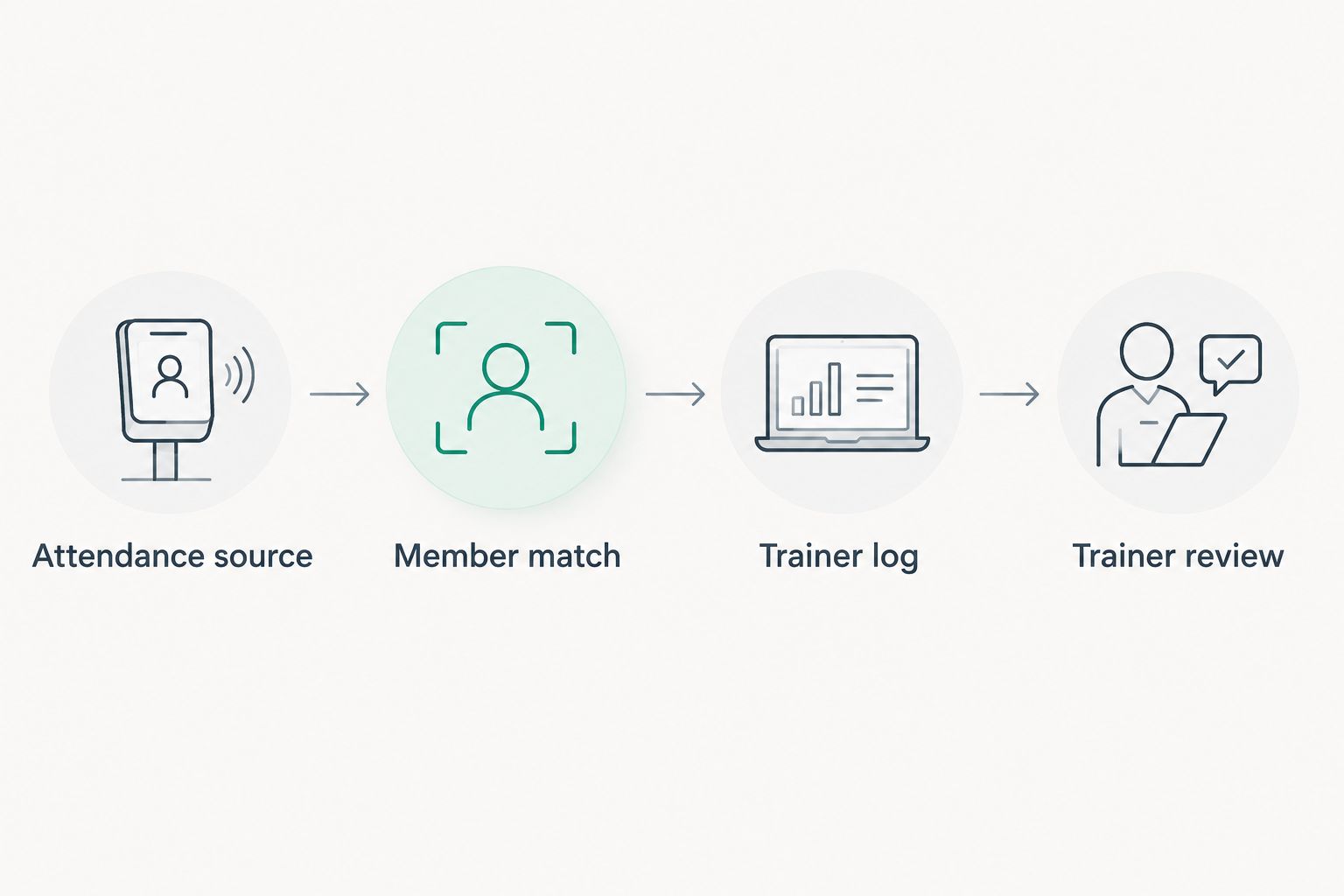
Verification and notification configuration
Test the full record lifecycle
A successful connection test proves that systems can communicate. It does not prove that the attendance history is correct. Before enabling your 2026 workflow, test new records, repeated records, and corrections separately.
- Send a confirmed attendance record for the correct member. Check the class name, session date, status, and time zone against the source.
- Send the same record again. Confirm that the destination still contains 1 row for that attendance.
- Test 2 different attendance records. Confirm that the destination keeps them separate even when their class names match.
- Test a reservation that is not marked attended. Confirm that it does not appear as a completed visit.
- With the administrator's permission, test a corrected record using a test environment or an approved sample. Confirm that the original row changes without losing the trainer's note.
- Open the destination using the trainer's authorized access. Verify that the trainer can see the intended records and cannot see unrelated members' information.
Expected result: The destination matches the source across new attendance, duplicate delivery, and correction scenarios. A failed test is a reason to fix the configuration before enabling notifications.
Do not alter a real attendance record merely to manufacture a test. Use approved test data or an administrator-supervised example, and keep personal information out of screenshots shared for troubleshooting.
Set a useful notification rule
- Agree with your trainer whether a new-attendance alert is necessary. A shared history can be sufficient when the trainer reviews it before appointments.
- If you enable alerts, send them only after the destination record saves successfully. Include the class and session date, not an entire member profile.
- Suppress repeat alerts for unchanged records. Send a correction notice only when the changed information matters to the trainer's review.
- Set an error destination for failed imports. Give a named person responsibility for checking failures and reconnecting expired access.
Expected result: Your trainer receives relevant attendance information without repeated messages for the same class. Import failures have an owner rather than remaining invisible.
Second workflow: update a weekly attendance summary
A weekly summary is best for trainers who review patterns before a personal training appointment rather than after each class. Its advantage is a quieter overview; its limitation is that it does not provide immediate notice of a newly completed session.
- Use the same verified attendance log as the source. Do not create a second, independently maintained class history.
- Agree on a 7-day review window and its time zone. Define the start and end consistently so a class does not move between reporting periods.
- List completed classes with their session dates. Show corrected or withdrawn attendance separately rather than counting it as completed.
- Deliver the summary through an authorized channel or let the trainer review the shared view. Keep access limited to the intended recipient.
- Check the summary after a correction. Recalculate from the current records instead of permanently accumulating every imported event.
Expected result: Your trainer gets a repeatable review of completed attendance without treating duplicate imports as extra workouts.
For TBT Fitness Studios personal training, use attendance as context for a coaching conversation. A class count does not establish how challenging a session felt or whether you need a change to your next workout.
Troubleshooting
Reservations appear as completed classes
Fix the source filter. Compare an attended record with a booking-only record and use the source's actual attended status. A reminder, calendar entry, or reservation confirmation is not proof of participation.
The same class appears more than once
Fix record matching before deleting rows. Check whether repeated deliveries share an attendance identifier. Configure updates against that identifier, then reconcile existing duplicates against the source so you do not remove a genuinely separate visit.
Attendance appears on the wrong day
Check session time and time zone together. A timestamp converted between zones can cross a date boundary. Store the session's intended local date and zone, and do not substitute the import date for the class date.
Corrected attendance stays unchanged
Check whether the connection handles updates. A new-record-only trigger will not capture later edits. Use a supported update event or a scheduled reconciliation process; otherwise, make corrections part of the manual review.
Your trainer cannot see the records
Check destination access before reconnecting everything. Confirm the trainer is signed into the authorized account and has permission to view the log. If the destination is empty, check source authorization and the last successful import separately.
Customize your workflow
Keep your 2026 attendance workflow focused before expanding it. Add a short note about how a class felt only when you and your trainer agree that the note will help; do not turn every check-in into a long questionnaire.
TBT Fitness Studios offers group fitness classes, personal training, customized meal plans, and InBody composition analysis. Those services address different information needs. Attendance should remain an attendance record, not a substitute for a nutrition review or body-composition assessment.
Before adding wearable data, define what question the extra information answers. Keep workout recordings separate from studio-confirmed check-ins, and never use the existence of a device workout as automatic proof that you attended a particular class.
FAQ
How do I sync class attendance with my personal trainer automatically?
Use an authorized completed-attendance feed or scheduled data source to update a private trainer log. Match records by a stable attendance identifier, filter out bookings that were not attended, and test corrections before enabling alerts.
Can I use my class calendar as proof of attendance?
No. A calendar entry records a scheduled class, not a completed check-in. Use the studio's confirmed attendance record for your completed-class history.
Does TBT Fitness Studios have an automatic attendance integration?
Confirm supported attendance-sharing methods directly with TBT Fitness Studios before selecting a connector. This workflow requires authorized access to completed attendance and does not establish that a particular integration is supported.
What should my trainer receive after I attend a class?
Send the class name, session date, attendance status, and enough identification to match the correct member. Keep unrelated personal information and other members' records out of the shared log.
Is a weekly summary better than a notification after every class?
A weekly summary is better when your trainer reviews attendance before appointments rather than after every class. Individual alerts suit an agreed need for prompt updates, but require duplicate suppression and correction handling.
What if my studio cannot share attendance automatically?
Use a private manual attendance log until an authorized automated method is supported. Do not describe manual entry or a booking reminder as automatic attendance syncing.
Should my training plan change automatically after a class?
No. Attendance alone does not describe exercise intensity, discomfort, or recovery. Let your trainer interpret the class history alongside your feedback before changing your program.
One last thing
The most useful test is a corrected attendance record, not a new one. New records show that information can move; corrections show whether the shared history stays accurate. Make that your final acceptance check before switching on your 2026 workflow.